Support
Turn on USB debugging and connect with Vysor
With USB debugging on and Vysor on a PC, Raptool support can see and control an Android scanner from the PC. You need a USB cable and a Windows PC.
On the Android device
Turn on Developer options
Open Settings → About phone (on some devices About device or About tablet, or one level deeper under Software information). Tap Build number seven times until you see “You are now a developer!”.
Illustration: tap Build number 7 times Turn on USB debugging
Go back to Settings and open System → Developer options (on some devices System → Advanced → Developer options). Turn on USB debugging.
Illustration: USB debugging on Connect the cable
Connect the device to the PC with a USB cable. Pull down the notification about USB and open USB Preferences: USB controlled by = This device, Use USB for = File Transfer or PTP.
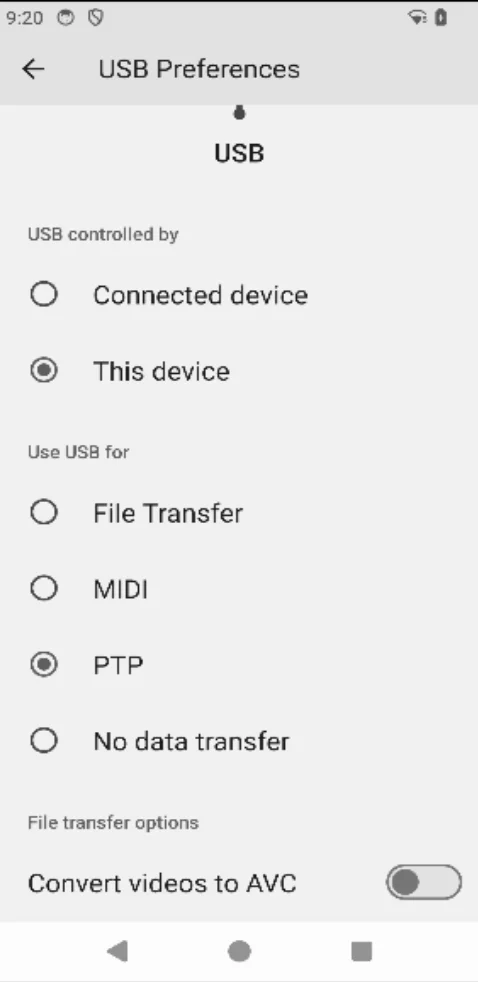
USB Preferences (PTP selected) Allow USB debugging
The device asks Allow USB debugging? for this computer. Tick Always allow from this computer and tap Allow. The device must be unlocked to see the question.
Illustration: the question on the device
On the PC
Install Vysor
Click Vysor for Windows above (the download comes from vysor.io), run it and open Vysor. The free version can show and control the device.
Illustration: the device screen on the PC Open the device
The device shows in the Vysor list. Click it to see the screen. Use the mouse and keyboard to control it.
No device in Vysor?
Cable and port
Try another USB cable or another USB port. Some cables only charge. Unplug and plug in again.
Answer the question again
In Developer options, revoke the USB debugging authorizations, plug in again and tap Allow on the device.
Windows USB driver
Windows may need the device maker’s USB driver. Look for it in the support section of the maker’s website.
Turn it off afterwards
Turn off USB debugging
When support is done, open Developer options and turn off USB debugging. While it is on, a computer you allowed can control the device over USB.