Support
Turn on the hardware scanner
On a handheld with a built-in scanner, set the Raptool Client to use it instead of the camera. Watch the video, then follow the steps on your device.
Shown: Raptool Client 7 on an Android handheld. The password and device id are hidden.
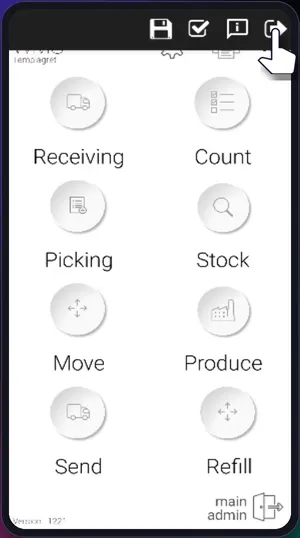
Tap exit
In the app, tap the exit icon in the top right corner.
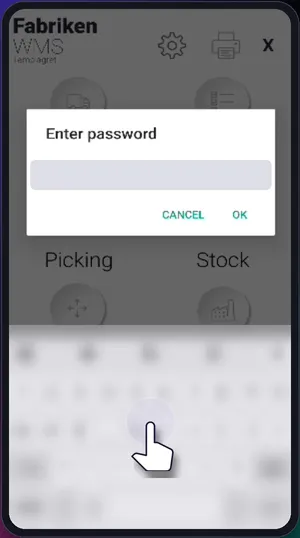
Enter the exit password
Type the exit password and tap OK. The Raptool Client start screen opens.
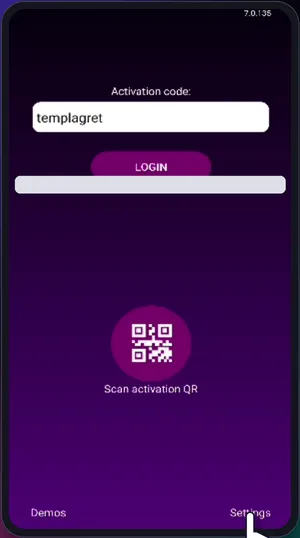
Open Settings
On the start screen, tap Settings in the bottom right corner.
Turn off Camera scanning
Untick Camera barcode scanning.
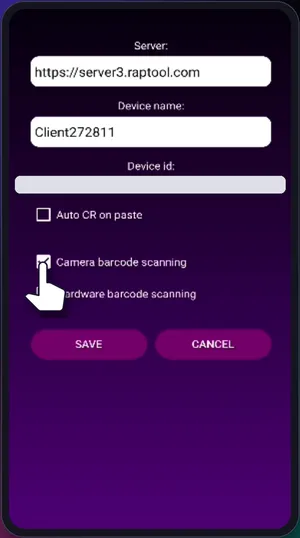
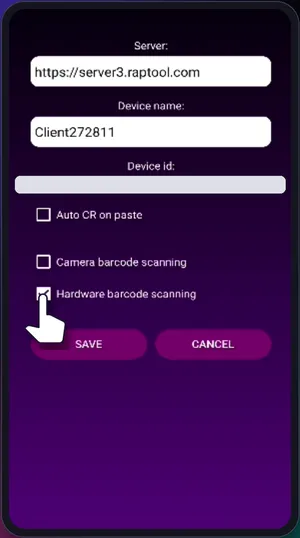
Turn on Hardware scanning
Tick Hardware barcode scanning. In the video, Camera barcode scanning goes off at the same time.
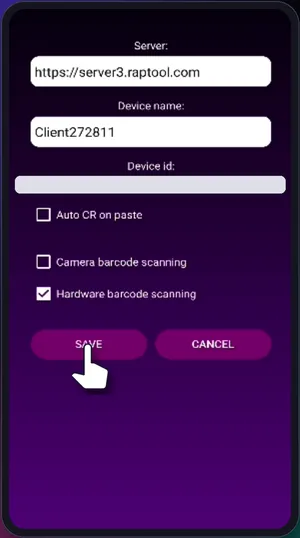
Save
Tap SAVE. You are back on the start screen.
Good to know
One device at a time
The setting is saved on the device. Set it on every handheld that has a built-in scanner.
No camera icons
With the hardware scanner on, scan fields show no camera icons. Press the scan button on the device instead.
Scanner setup
The scanner itself must send barcodes with the action
com.raptool.SCAN. See Set up barcode reader for Honeywell, Zebra, Datalogic and Newland.
New Raptool Client
The same setting in the new Client
Open Settings
Tap the cogwheel in the bottom left corner of the start screen.
Hardware scanner
Set Hardware scanner On. It is on by default on rugged scanners (Zebra, Honeywell, Datalogic and others). Apps pick up the change at once.