1About Raptool Publisher
- Raptool Publisher is a Windows program that publishes Raptool apps to your server and lets you look after that server.
- With Auto publish on, every new ready version of an app goes live by itself.
- Server tools show the server's health, its files, its databases, its apps and more, each in its own window on a server desktop.
- It is for Raptool staff and for companies with a Publisher licence. Publishing uses the server login already set up on this PC.
2Getting started
Install
- Run the Publisher setup. Shortcuts Raptool Publisher 2 are added to the desktop and the Start menu (the turquoise rocket icon).
- Open the Publisher. Only one copy runs at a time; starting it again brings the window forward.
- Closing the window quits the Publisher, except while Auto publish is on: then it keeps running in the tray.
The server desktop
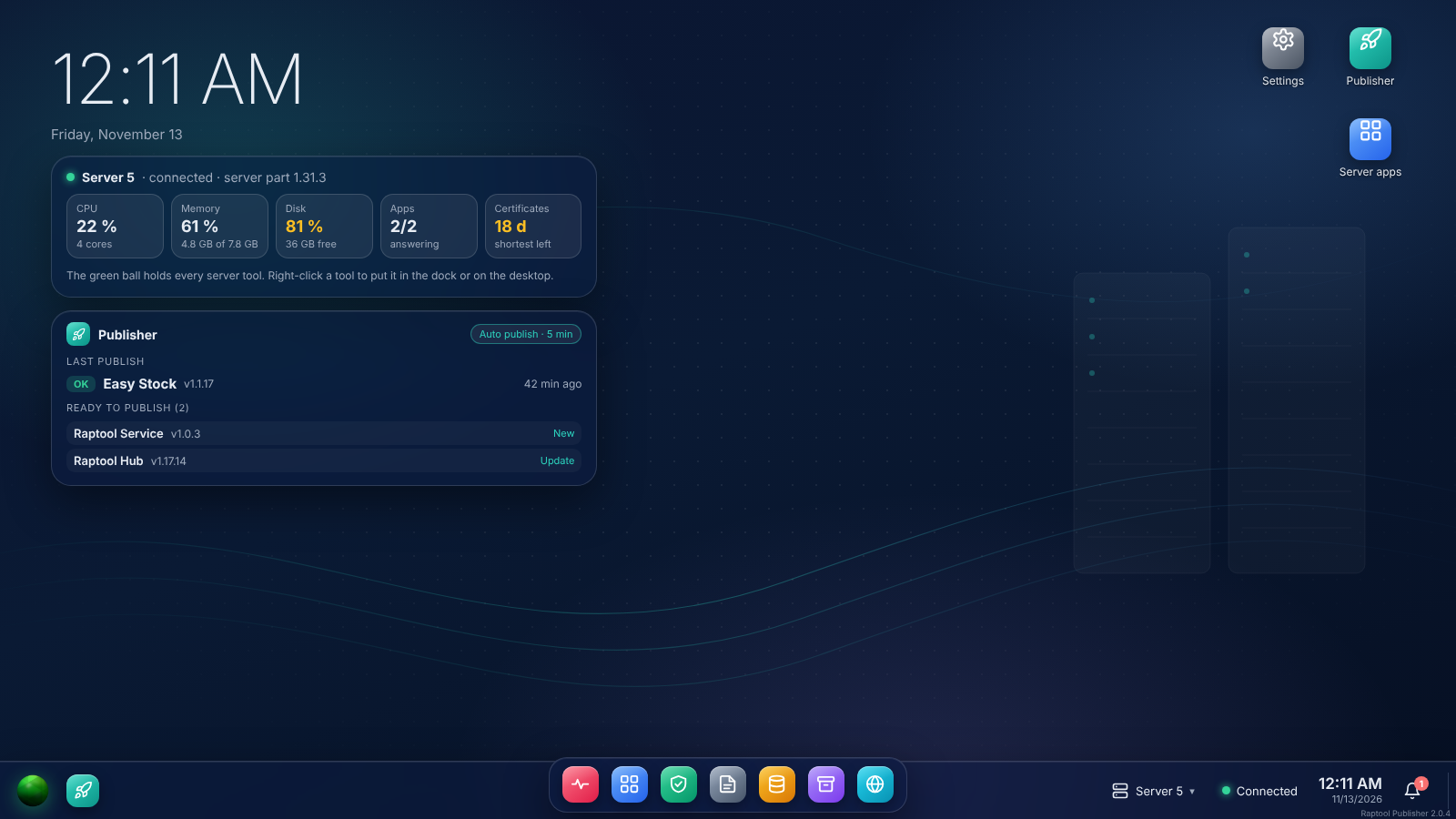
| Part | What it does |
|---|---|
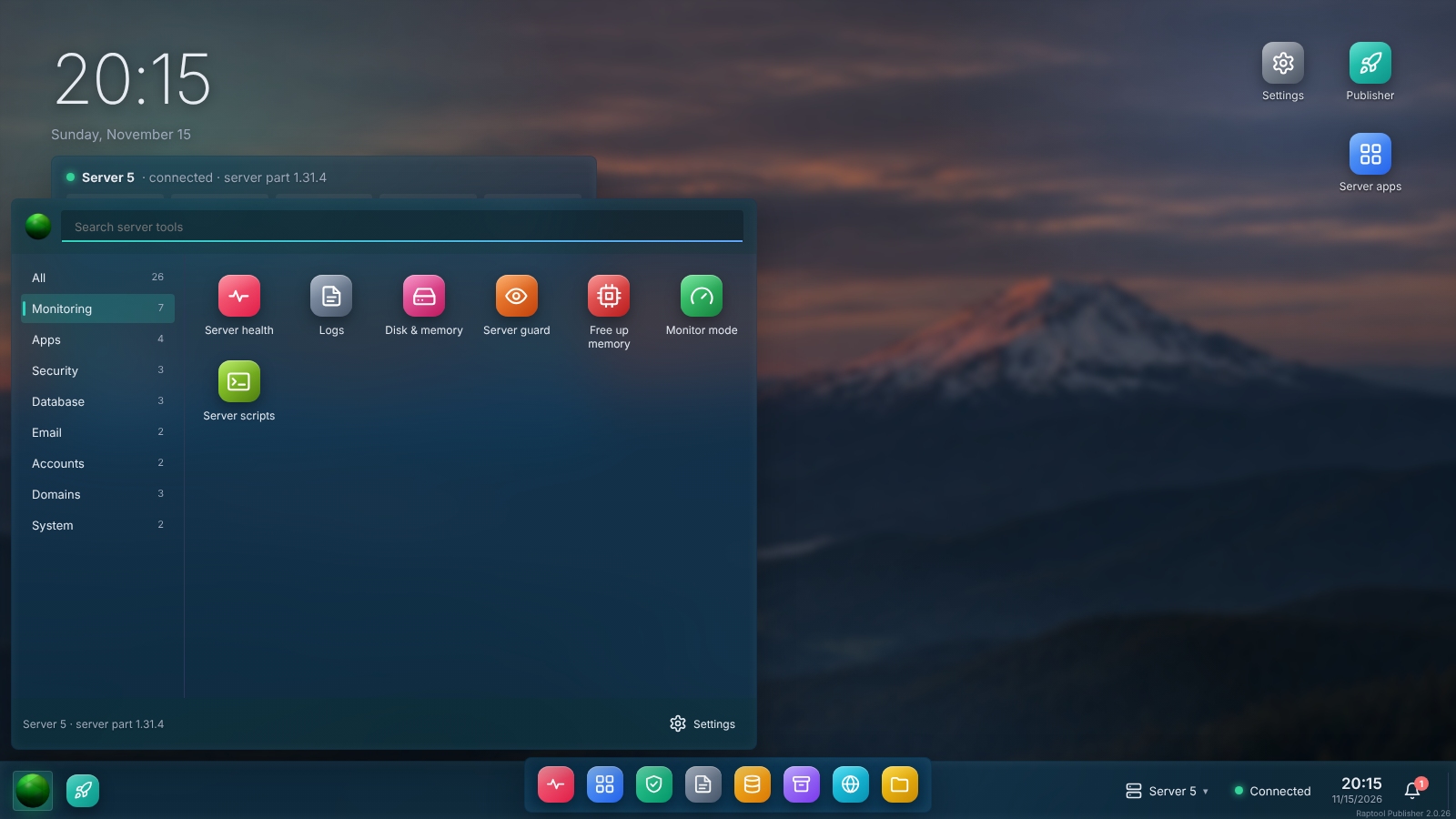
| Start menu (green ball, bottom-left) | All server tools, with search and categories: Monitoring, Apps, Security, Database, Email, Accounts, Domains, System. The footer has Settings. |
| Publisher button (rocket, next to the ball) | Opens the projects list. While publishing it shows the app, the step (for example "3/5 Build app") and a progress ring, then a green "Published" or a red "Failed". |
| Dock (middle) | Quick buttons: Server health, Server apps, Secure server, Logs, Databases, Backups, Domains & HTTPS, Server files. Open tools show a dot. |
| Server picker and connection | Which server you work on, and whether it is connected. |
| Clock and bell | The bell opens notifications: publish results, health and certificate warnings, tool results. Clear all empties it. |
| Desktop | A clock, a server card (CPU, memory, disk, apps, certificates) and the Publisher tile with the latest publishes. |
- Right-click a tool, dock icon or desktop shortcut: Open, Add to / Remove from dock, Add to / Remove from desktop.
- Windows can be moved, resized and snapped like in Windows. Show desktop is the thin strip at the far right of the bottom bar.
3Publishing (Publisher button)
The projects list
- All Raptool apps found on this PC, with search and filter chips with counts (for example Not published, Ready to publish, Failed).
- A Ready to publish banner lists new apps. Its set-up asks for the server and web address: Not now, Add without publishing or Publish now.
- Each project card: Publish, Status, Logs (live), Restart, Open site, Open folder and More actions (Show first login, Reset login, Publish only this app, Copy data).
What happens when you publish
| Step | What it does |
|---|---|
| 1. Pack files | The app's files are packed on this PC. |
| 2. Upload | The package is sent to the server. |
| 3. Build app | The server builds the app. |
| 4. Start app | The app is started. |
| 5. Secure HTTPS | The web address and certificate are set up. |
Each step has its own colour; a failed step is red. Afterwards the Publisher checks that the live app answers with the new version. Publish history shows each publish with a green or red badge. An app made of a main app and parts is published together; Publish only this app publishes one part.
After the first publish of an app with data, the Publisher offers to copy the data to the server.
4Auto publish (Settings → Publisher)
- Switch on Auto publish ("Publishes every new ready version by itself").
- Choose how often to check: every 1, 2, 5, 10 or 15 minutes.
- Apps that were published before and have a new ready version are queued and published one at a time.
- Auto publish also runs with the window closed (the Publisher stays in the tray). A Windows notification tells you the result.
- The tray menu shows the status, the last 5 publishes, an Auto publish switch and Open.
- A version that fails is skipped until a newer version is ready. Skipped versions in Settings lists them (app, version, when, reason) with a Fix button and Try all again.
- If a password is missing, the version waits as "Waiting for you" with a notification; you are asked once, and the publish goes on.
- Start with Windows (off by default) starts the Publisher when you sign in.
5Server health (Dock or Start menu → Monitoring → Server health)
- Tiles at the top (for example apps running, problems, CPU, memory, disk, certificates). Click a tile to filter the table to what it counts.
- Charts of CPU, memory and disk for the last 24 hours.
- Tables of the server's apps and containers, with a Problem column and a Problems chip.
Details and fixes
- Click an app's row. A details panel opens: the full problem, when the app last answered, when it was checked and last OK.
- Suggested fixes lists safe one-click actions (for example renew a certificate). Each one asks you to confirm first; Cancel sends nothing.
- What was checked shows each web address: certificate, answer and time, DNS and the web server set-up.
- Copy report copies everything; Check again checks again.
The same panel opens from Domains & HTTPS → row menu → Details and fixes.
Server scripts (Start menu → Monitoring)
One read-only list of everything that runs on the server: scheduled jobs, services, timers, containers and long-running processes. Columns include status, last run, next run, CPU, memory and disk. Click a row for details and the last log lines. Passwords in commands and logs are shown as ****.
6Server files (Dock or Start menu → System → Server files)
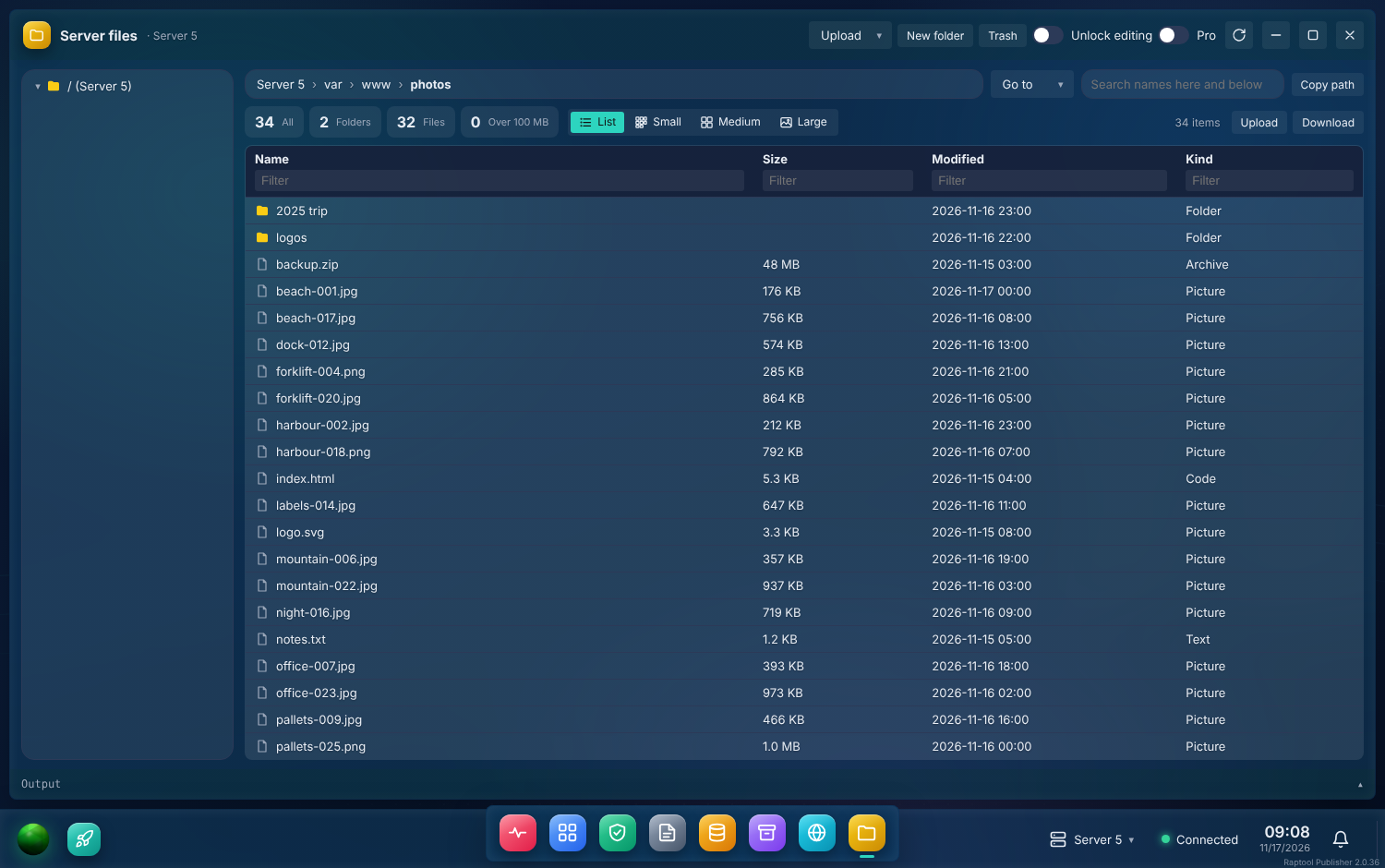
A file explorer for the connected server.
- Folder tree, path bar (double-click to type a path), Go to quick links (home, app folders, web roots, logs, backups) and search by name in this folder and below.
- Chips: All, Folders, Files, Over 100 MB. Click a chip to filter.
- Upload files or folders (also by dragging them in from Windows: Replace or Keep both), Download with a progress bar and Stop, New folder, rename, copy / cut / paste, zip / unzip, Copy path.
- Preview text and code with colours, and pictures. Other files: Open on this PC.
- Edit and Save: a backup copy of the file is kept first, and saving is refused if the file changed meanwhile.
- Delete moves to the server's trash. Trash lists it with Restore. Nothing is ever hard-deleted.
- System folders are read-only until Unlock editing (asks twice). The Pro switch shows permissions, owner and group.
Views
| View | Shortcut | What you see |
|---|---|---|
| List | Ctrl + 1 | The table (default). |
| Small | Ctrl + 2 | Tiles with small thumbnails. |
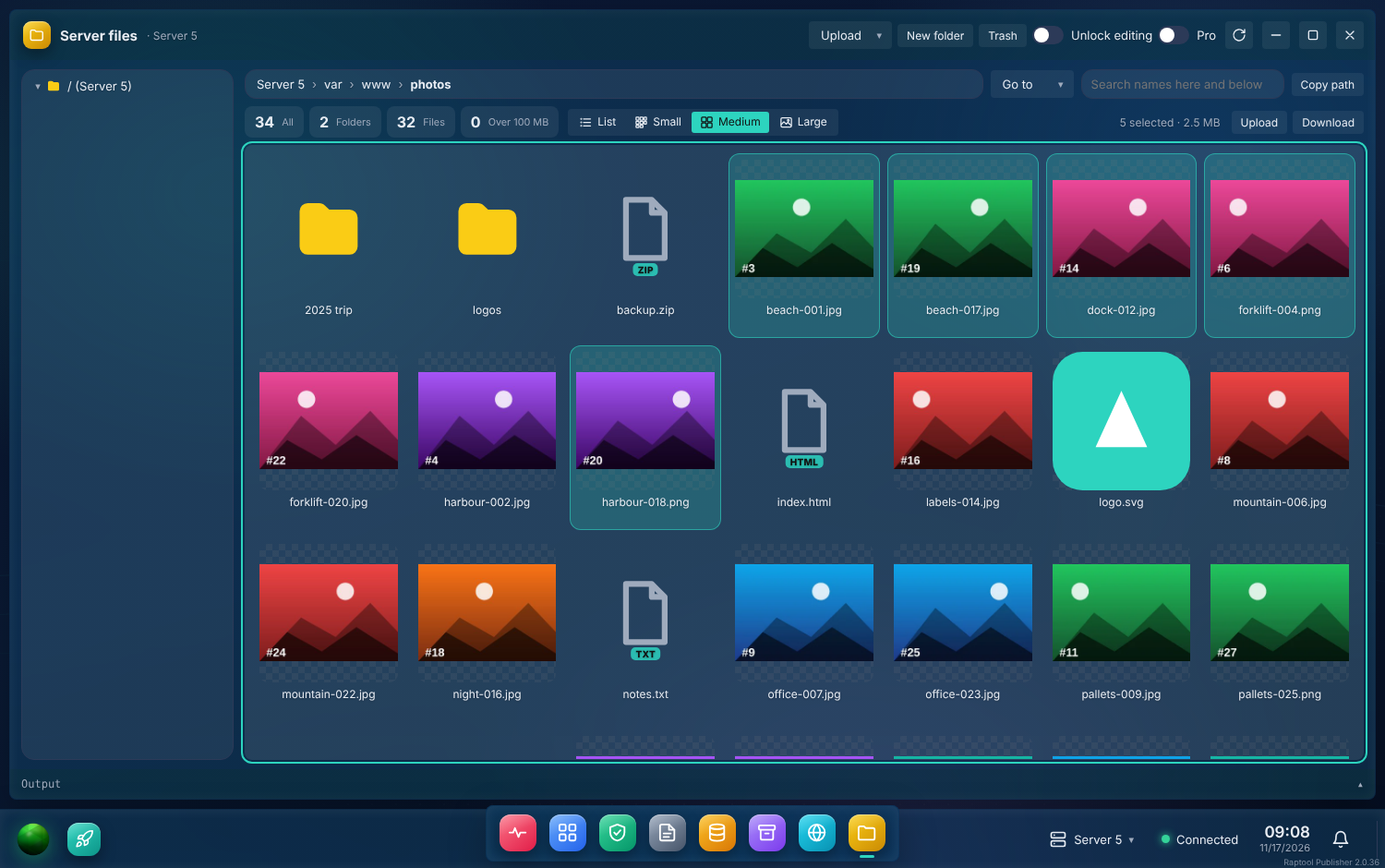
| Medium | Ctrl + 3 | Bigger thumbnails. |
| Large | Ctrl + 4 | Large thumbnails with size and date. |
The view buttons sit on the chip row and the choice is remembered. Pictures (jpg, png, gif, webp, svg, bmp, ico, avif) show as real thumbnails, never cropped; folders and other files show as icons. Very large pictures show as an icon.
Picture viewer
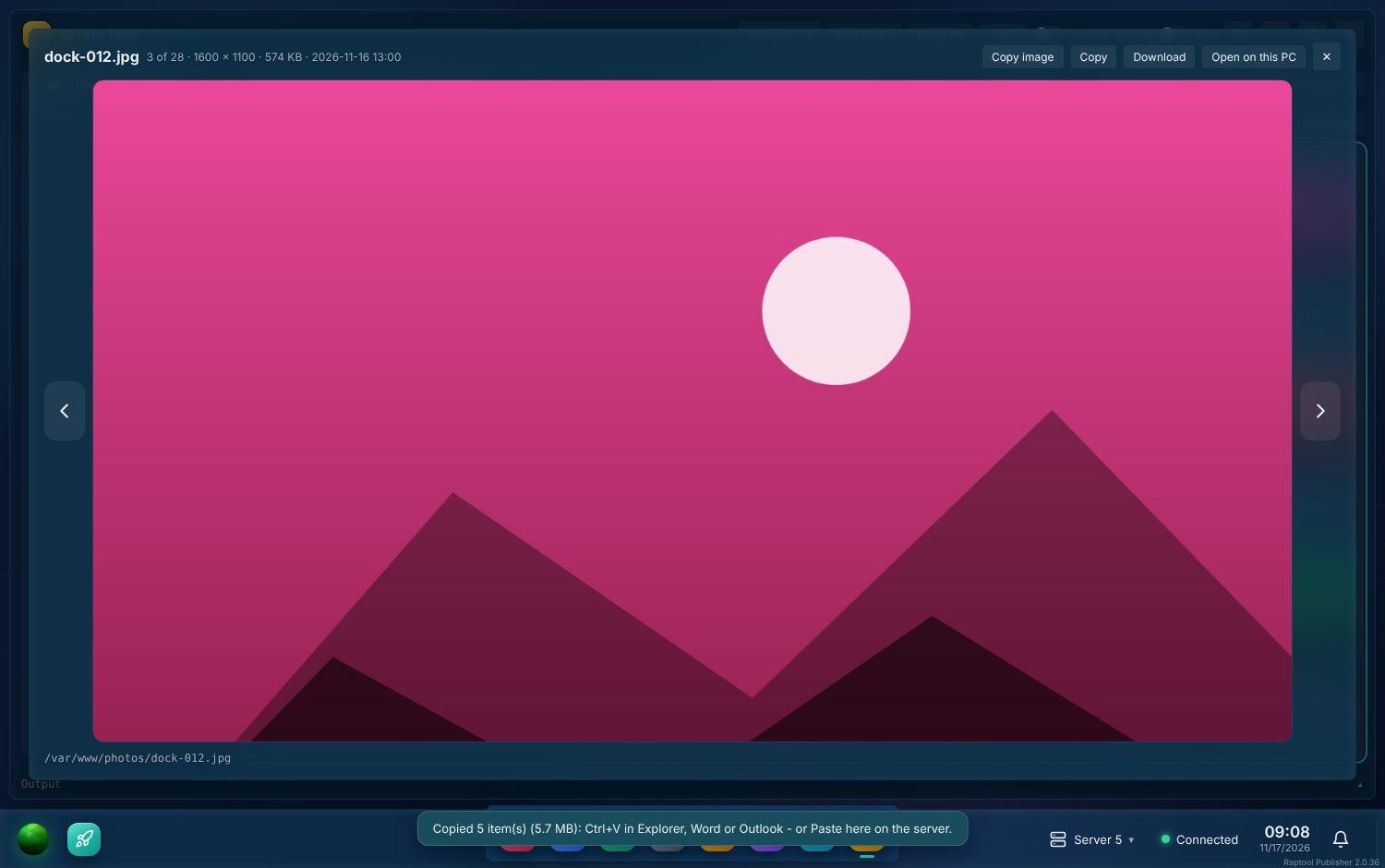
Click a picture (or double-click / Enter in the list) to see it full size. Previous / Next (or the arrow keys) go through the pictures shown. The bar shows "3 of 28", size and date. Copy image, Copy, Download, Open on this PC; Esc closes.
Copy files to Windows
- Select with Ctrl / Shift, arrow keys (Shift + arrow extends) or Ctrl + A.
- Ctrl + C or right-click Copy puts the real files on the Windows clipboard: paste them in Explorer, Word or Outlook. They can also be pasted elsewhere on the server.
- Right-click Copy image copies one picture as an image.
- Drag files or tiles out of the window into Windows. If fetching takes a moment, you are told to drag them again.
7Databases (Dock or Start menu → Database → Databases)
The window has two parts: List (every database with size, and backups) and Viewer.
Viewer
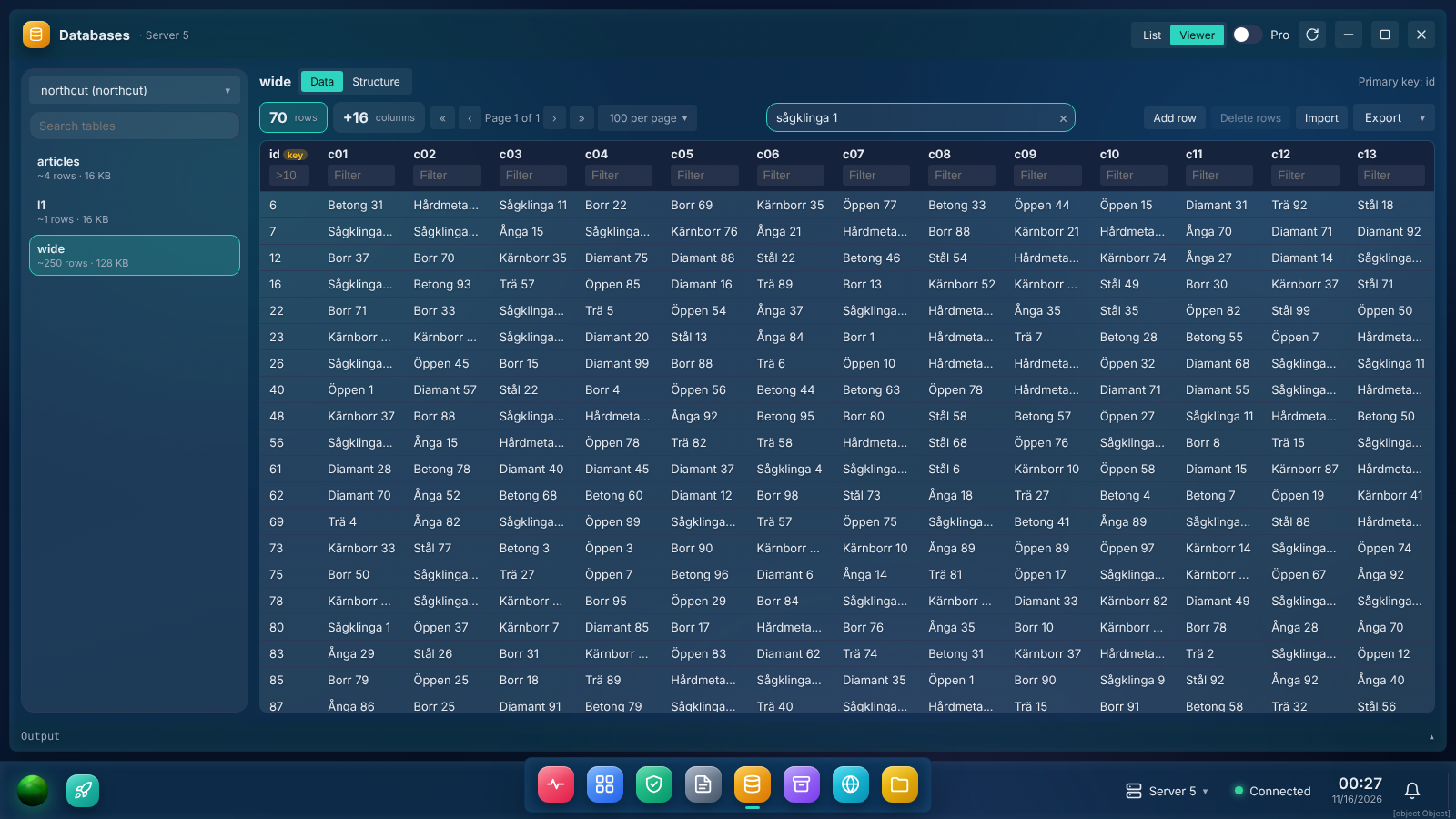
- Pick the app's database in the picker (it shows the number of tables). The tables are listed with rows and size.
- Click a table. The data grid is paged on the server: sort, resize columns, filter per column.
| Filter | Finds |
|---|---|
text | Contains the text |
=x / !x | Exactly x / not x |
>5 | Larger than 5 |
5..20 | From 5 to 20 |
a,b,c | One of these |
empty | Empty |
- The search box on the table bar searches every column of the table (case and accents ignored). Esc or × clears it.
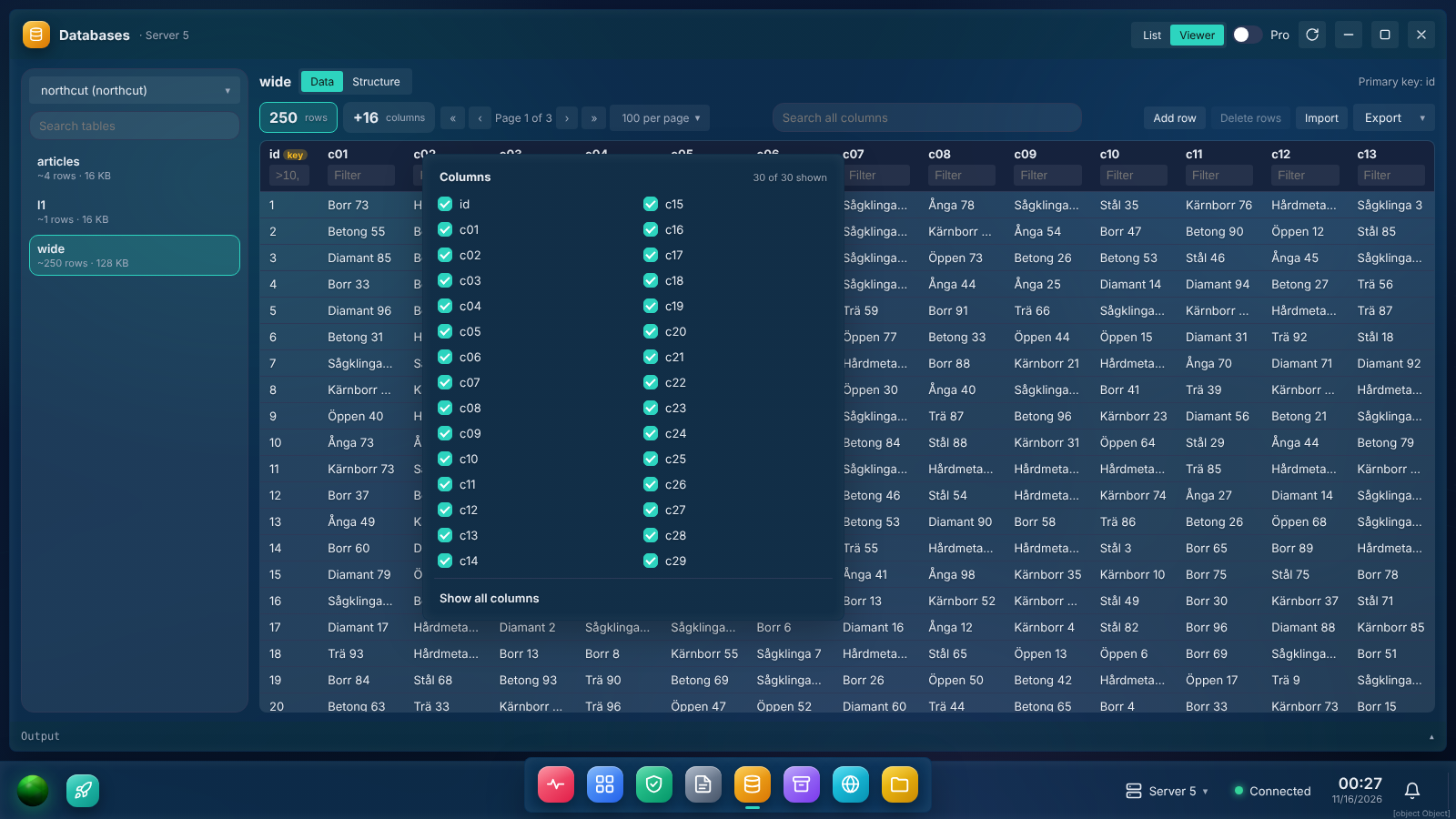
- Right-click a column header (or the "+N columns" chip) for the column menu: a tick box per column and Show all columns. The choice is remembered per table.
- Export CSV, Excel, JSON or SQL exports what the search shows; hidden columns are left out unless you tick All columns.
- Double-click a cell to edit it (tables with a primary key), Add row, Delete rows (asks twice and is logged), and Import (CSV, TSV, TXT, JSON, Excel, ODS: map the columns, then insert).
- Structure shows columns, keys and indexes. In Pro an SQL box runs read-only queries; Allow changes asks twice, and statements that would remove or change a whole table are refused.
- An empty database says so plainly and offers buttons for the app's databases that do have tables.
8Other server tools (Start menu)
| Tool | What it does |
|---|---|
| Server apps | The apps on the server: Status, Logs, Restart, show first login, reset login. |
| Logs | App logs, live every 5 seconds, and web server logs. |
| Backups | Backup status and files, run a backup now, change the schedule, copy backups to this PC. |
| Domains & HTTPS | Web addresses, certificates and Cloudflare status. |
| Secure server | Checks the server's security and applies a plan you tick, with a safety timer and a check afterwards. |
| Disk & memory | What takes space and memory; clean up and set limits. |
| Server guard, Protect server, PHP security check | Security events and hardening. |
| Email accounts, Mail server | Mailboxes (Mailboxes and Inbox tabs), mail server status and a setup checklist. |
| Accounts, Licenses | Server accounts and licences. |
Every table works the same way: sort, resize, right-click the header to hide or show columns, per-column filters, chips that filter, and Export. Tables never scroll sideways: columns that do not fit move into a "+N columns" chip.
Each tool has Refresh, Show desktop and Close in its title bar. The Output strip at the bottom shows the server's answers live. Questions are asked inside the window, and every red message has one plain sentence and a Fix button where possible.
9Settings and appearance (Start menu → Settings, cogwheel)
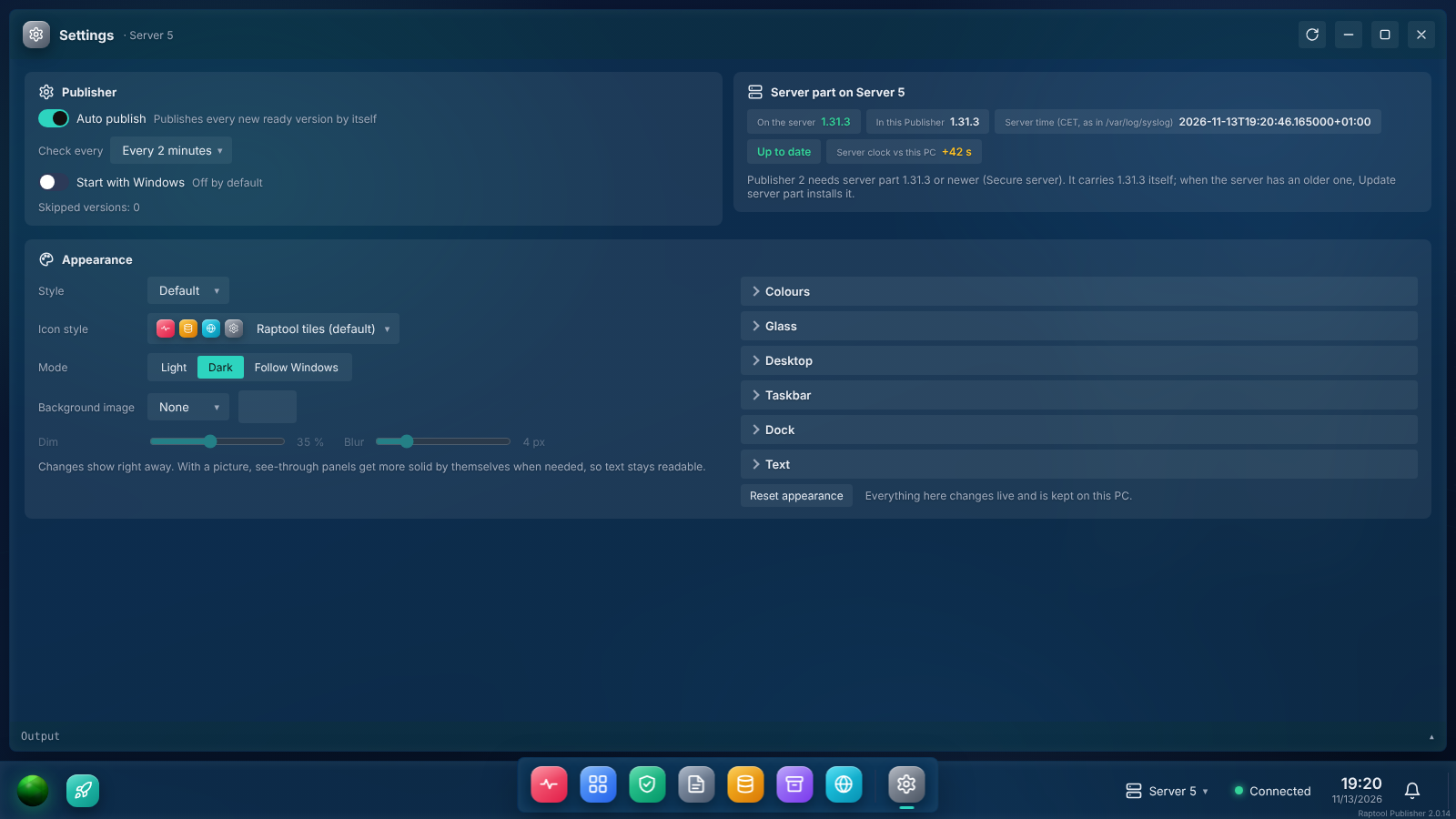
Publisher
Auto publish and how often to check, Start with Windows, and Skipped versions (see Auto publish).
Server part
The Publisher talks to a small program on the server, the server part. The card shows the version on the server and the version this Publisher carries, and the server's time (with a warning when the server clock and this PC differ by more than 3 seconds).
- When the server's version is older, press Update server part. Only that program is replaced; apps keep running.
- When it is the same or newer, the card says Up to date.
- A newer server part is never replaced with an older one.
- If a tool needs a newer server part, it says so: "Update the server part in Settings".
Appearance
| Setting | Choices |
|---|---|
| Style | Default, coss ui, Terminal, Glass |
| Mode | Light, Dark, Follow Windows |
| Icon style | A choice of icon sets for the start menu, dock and desktop |
| Accent colour | Follow icon style (default), Turquoise, Raptool orange, Blue, Green, Purple, Pink, Red, Yellow, Grey, or Custom… (hue, lightness or a hex value). Hover a colour to preview it. |
| Background image | None, Mountain sunset, Original, or your own picture from this PC |
| Glass | Transparency and blur, the same for all surfaces or per surface |
| Desktop | Clock 24 h (default) or 12 h, desktop icons |
| Taskbar | Hide automatically, its own transparency and blur |
| Dock | Bottom, Left or Right, hide until the mouse is on it, its own transparency and blur |
| Text | Text size S, M or L |
Reset appearance (click twice) puts everything back. Appearance settings are kept on this PC.
Raptool Publisher user manual 1.0 · Raptool/manuals/publisher · v2.0.476