1About Meeting Booking
| Part | Where | Who uses it |
|---|---|---|
| Booking (web app) | https://meetingroom.Raptool/web/, laptop or phone | Everybody in the company |
| Meeting Admin | https://meetingadmin.Raptool | Facilities and management |
| Door panel | A tablet on the wall outside each room (browser or Raptool Client) | Anyone walking past |
The four room states
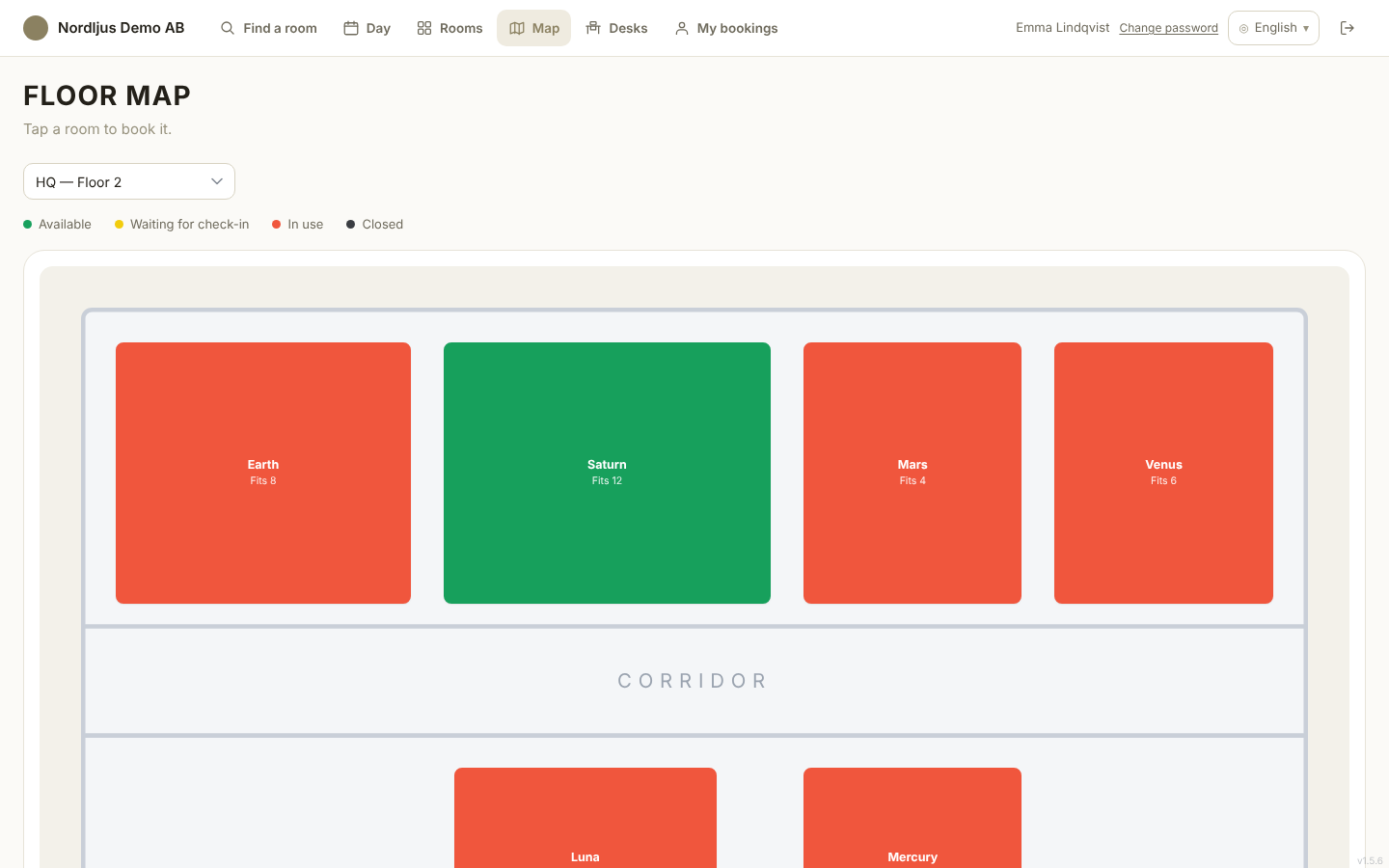
The panel, the floor map, the day grid and the reports all use the same colours.
| Colour | State | Meaning |
|---|---|---|
| Green | Available | Free right now |
| Yellow | Waiting for check-in | The meeting has started but nobody has checked in. The room frees itself after the auto-release time. |
| Red | In use | Checked in, meeting running |
| Grey | Closed | Outside the room's opening hours |
A booking nobody checked in to counts as a no-show; the empty hours count as ghost hours.
2Getting started
Signing in
- Sign in with your Raptool Account ("Sign in with Raptool Account"). Inside the Raptool Client, or when you are already signed in to the Hub, the apps open with no second sign-in.
- Several companies? Pick one when asked. Each company only sees its own data.
- The language menu (English / Svenska) is on the sign-in card and in the user menu. The choice is saved on you.
First set-up (admin)
- Open Meeting Admin. Settings opens on Getting started.
- Want to look around first? Fill with demo data adds rooms with photos, floors, made-up colleagues and three weeks of bookings.
- Add buildings, floors and rooms (or import them), then put a tablet on each door (see Door panel).
3Booking a room
The Booking app has the tabs Find a room, Day, Rooms, Map, Desks and My bookings.
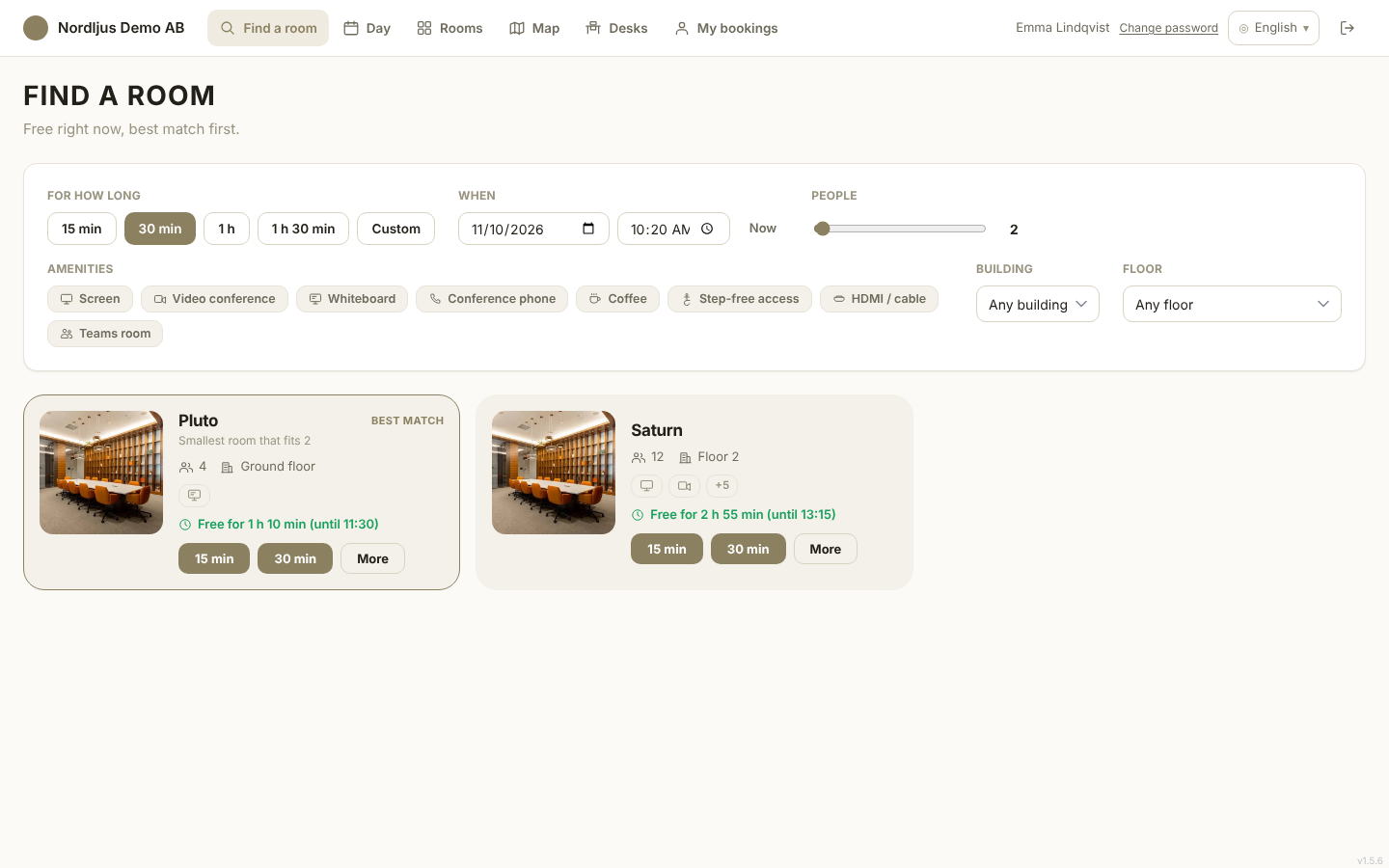
Find a room
- Choose For how long (15 min, 30 min, 1 h, 1 h 30 min or Custom), When (or Now) and the number of People.
- Optional: amenities (screen, video conference, whiteboard…), building and floor.
- Free rooms are listed, best match first. Press a time button on a room card to book, or More for details.
Other views
| Tab | What you see |
|---|---|
| Day | A day grid of all rooms |
| Rooms | Every room with photo, seats and amenities. Room details also offer Free nearby for the next hour. |
| Map | The floor plan: green free, red in use, yellow waiting for check-in |
| Desks | Book a desk (when the company uses desks) |
| My bookings | Your bookings as Blocks or a List, with Check in, Edit and Cancel |
More in a booking
- Repeating meetings: edit or cancel this one, the following ones or all.
- Private bookings show only "Private meeting" to others.
- Visitors: add guests (name, e-mail, company). Raptool Visitor gets an expected visit; the booking shows Expected and then Arrived.
- Catering and services (when switched on): order with the meeting, with delivery time and dietary notes.
- Booking e-mails (confirmation, change, cancellation, reminder) come with a calendar invite.
Desks
When the company uses desks: book a desk for a day, a morning, an afternoon or a free time, on the floor map or in a list. Check in with the button or by scanning the QR code on the desk; desks nobody checks in to are released.
Outlook and Teams
When the company has connected Microsoft 365 or Google, bookings show in Outlook or Google Calendar and the other way round. An Outlook add-in and a Teams app let people find and book a room there.
4Door panel
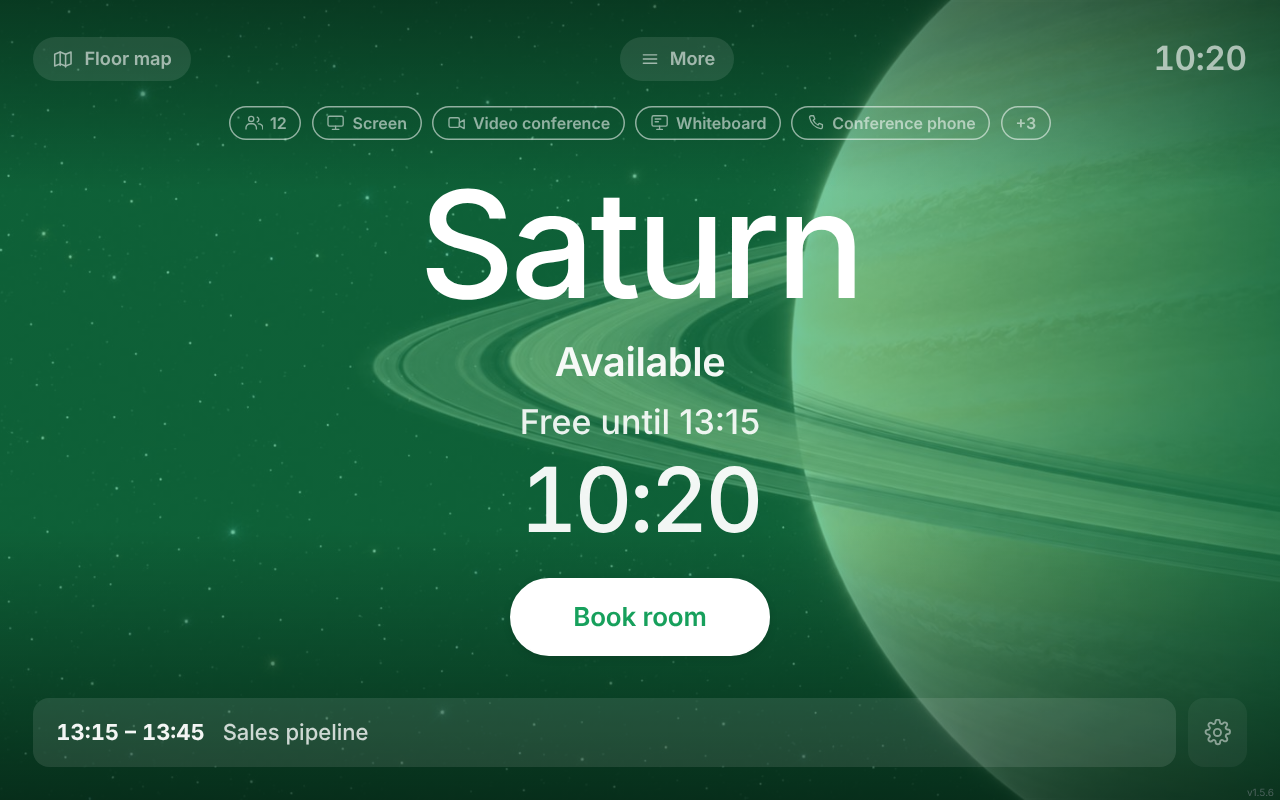
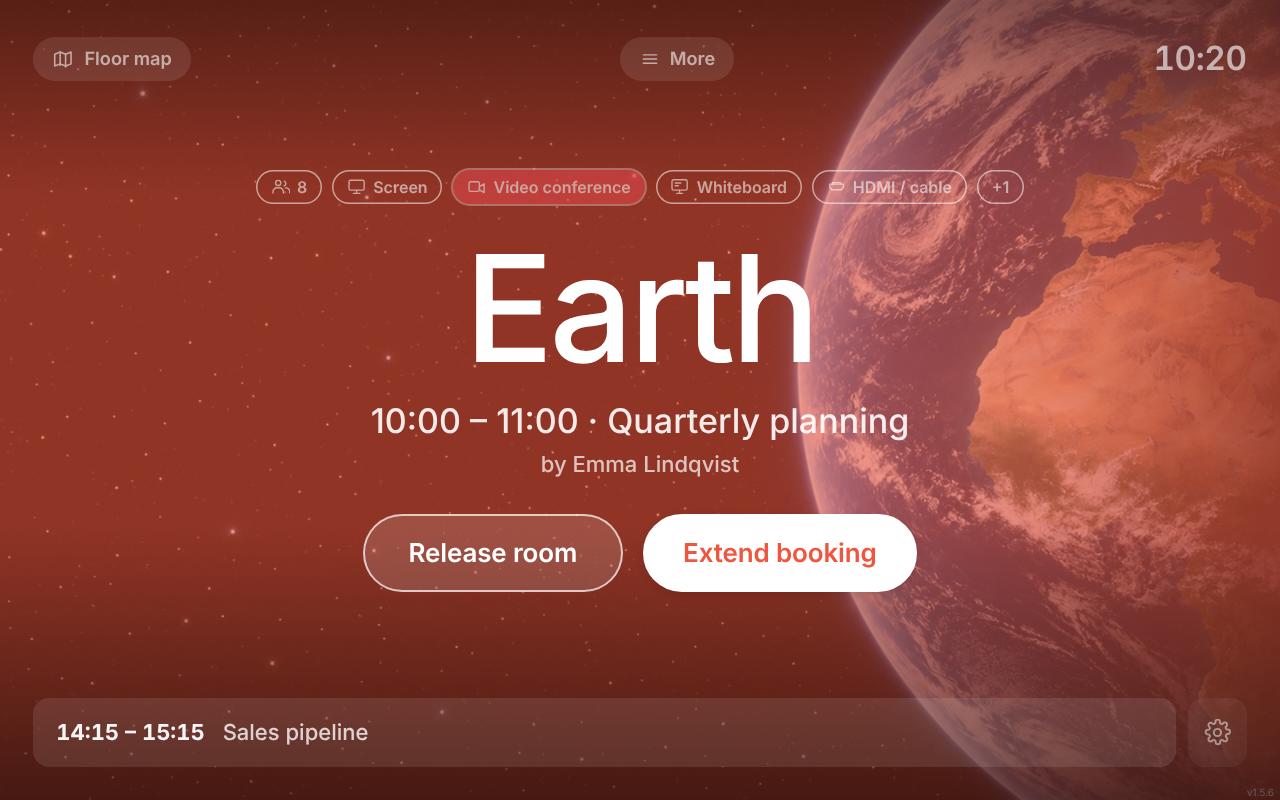
At the door
- Free room: Book room books it from the door.
- Meeting starting: Check in, or the room is released after the auto-release time.
- Meeting running: Release ends it early, Extend 15 min adds time. Changes show in Booking within seconds.
- More › Report a problem: pick the equipment or "Something else" and add a note. The item shows red until an admin marks it fixed.
- More › Free rooms nearby: free rooms for 30 or 60 minutes, same floor first.
- If the company set a panel PIN, actions ask for it.
Putting a tablet on the wall (admin)
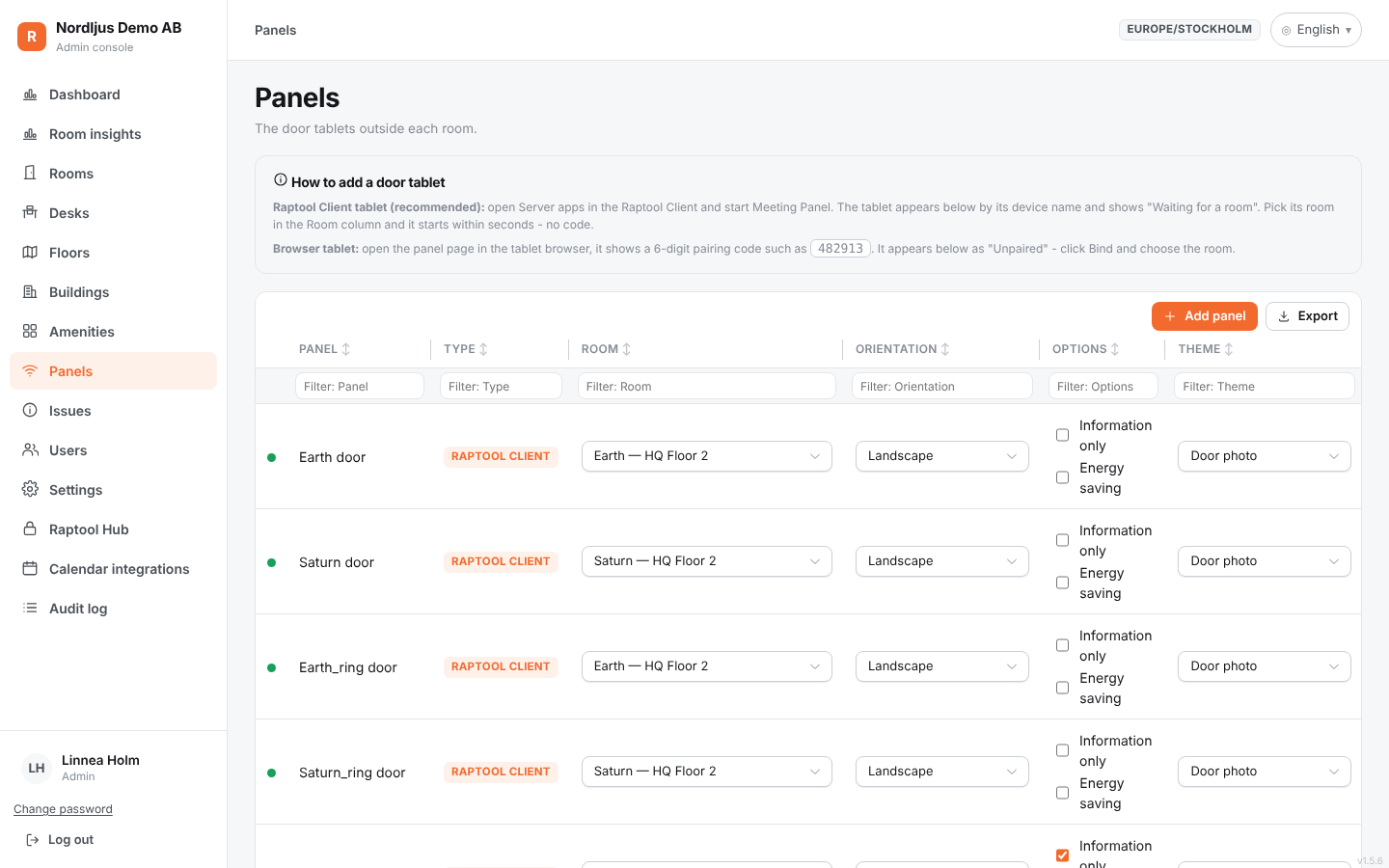
- Open
https://meetingpanel.Raptool/panel/on the tablet (add it to the home screen), or install Raptool Meeting Panel in the Raptool Client. - The tablet shows a 6-digit pairing code or "Waiting for a room".
- In Meeting Admin go to Panels › Add panel: type the code, add a Raptool Client tablet (steps and a QR code; the device turns up by itself), or make a placeholder.
- Choose the room. The tablet switches to that room within seconds.
Panel options (Admin → Panels)
| Option | What it does |
|---|---|
| Style | Classic (default) or Ring |
| Portrait | Turns the picture for a tablet mounted on its side |
| Information only | Shows the room, no buttons |
| Energy saving | Dims the screen while the room is closed; a touch wakes it |
5Meeting Admin
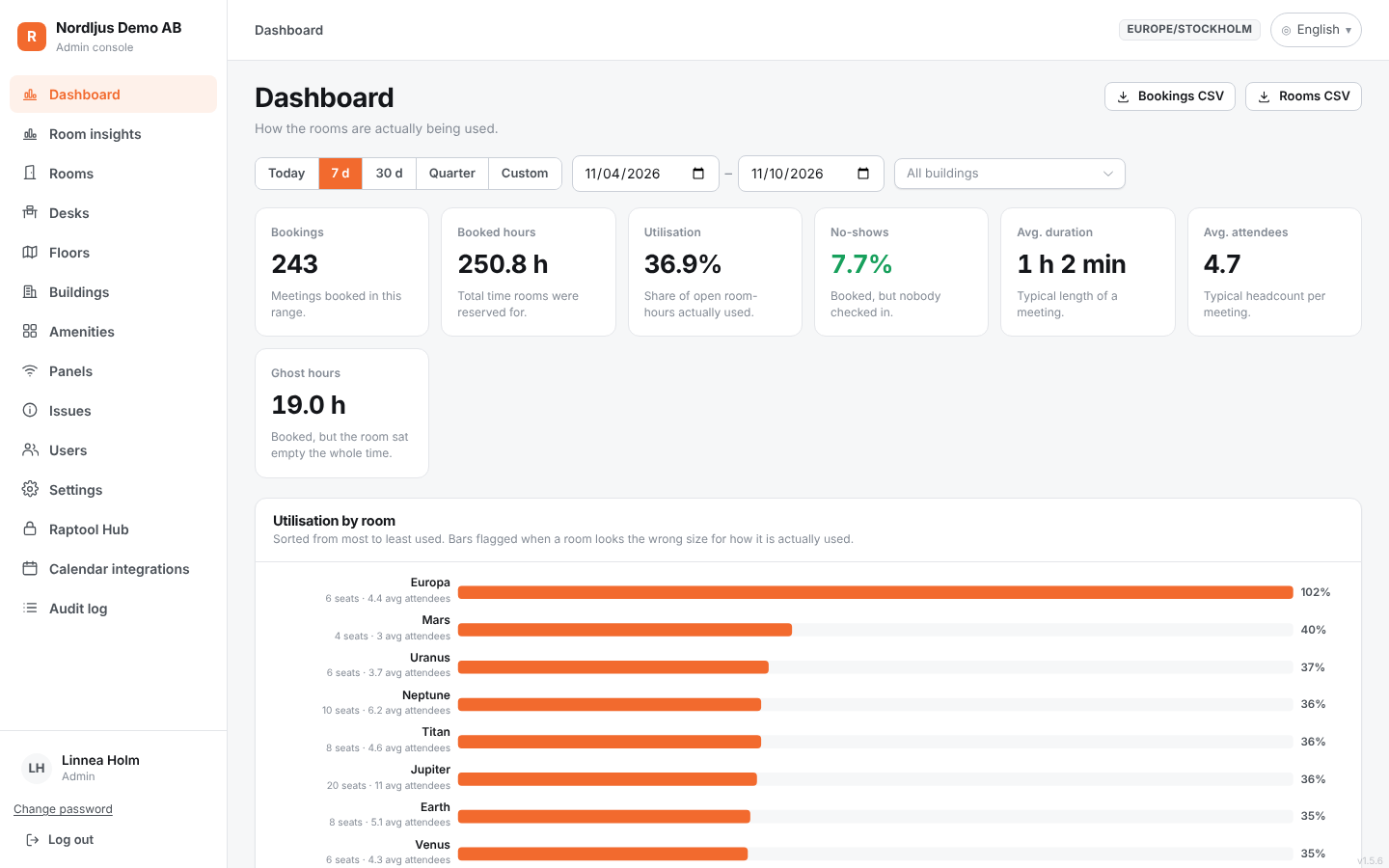
| Menu | What it is for |
|---|---|
| Dashboard | Bookings, booked hours, utilisation, no-shows, average length and attendees, ghost hours, and utilisation per room (rooms that look too big or too small are flagged). Choose Today, 7 d, 30 d, Quarter or Custom and a building. Bookings CSV and Rooms CSV downloads. Click a tile to filter. |
| Room insights | Booked vs used hours, rooms released automatically, hours freed and the money saved (cost per room-hour is set in Settings), underused rooms. Group by room, floor or building; Export. |
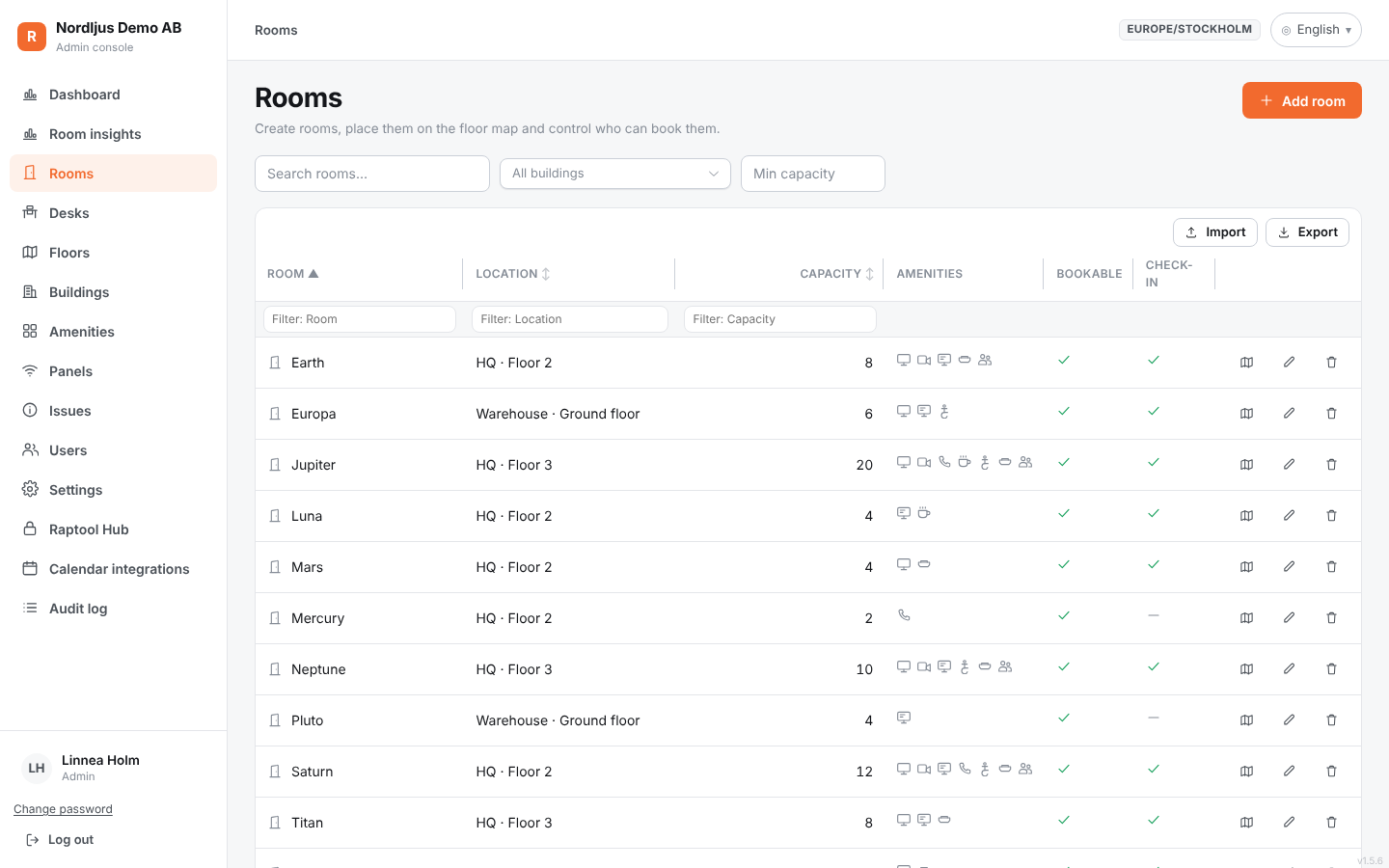
| Rooms | Each room: photo, seats, amenities, check-in rule, opening hours, panel language and Who may book (departments) |
| Desks | Desks on the floor plans, printable QR labels |
| Floors, Buildings | Floor plans (drag rooms onto the plan) and buildings |
| Amenities | The equipment list (screen, coffee…) |
| Panels | Door tablets: add, assign to a room, options |
| Issues | Problems reported from the panels; Mark fixed |
| Users | People and seats ("8 of 10 users") |
| Settings | Getting started, company language, booking rules, Room insights, visitors, support access log, data download |
| Raptool Hub | The link to the Raptool Hub, where access and licences are managed |
| Calendar integrations | Connect Microsoft 365 or Google and pair rooms with their calendars (import wizard for the pairing list) |
| Connected apps | Raptool Visitor and TimeLogger: link status, who is in the building today |
| Audit log | Who changed what |
Booking rules (Admin → Settings)
- The longest booking allowed.
- Private titles on all door panels.
- A PIN for actions on the door panels.
- Optional (Connected apps): release a room when TimeLogger says the organiser is not in, N minutes after the start.
Service orders
People with the Hub role service or reception see only the Service orders board, with the catering and service orders of the meetings.
Tables
Admin tables can be sorted, filtered, resized and hidden column by column, and have Import (the standard Raptool import wizard) and Export.
Meeting Booking user manual 1.0 · Raptool/manuals/meeting-booking · v2.0.476